Q.Tunnel⚡Sats - Introduction
Why should I use this service?
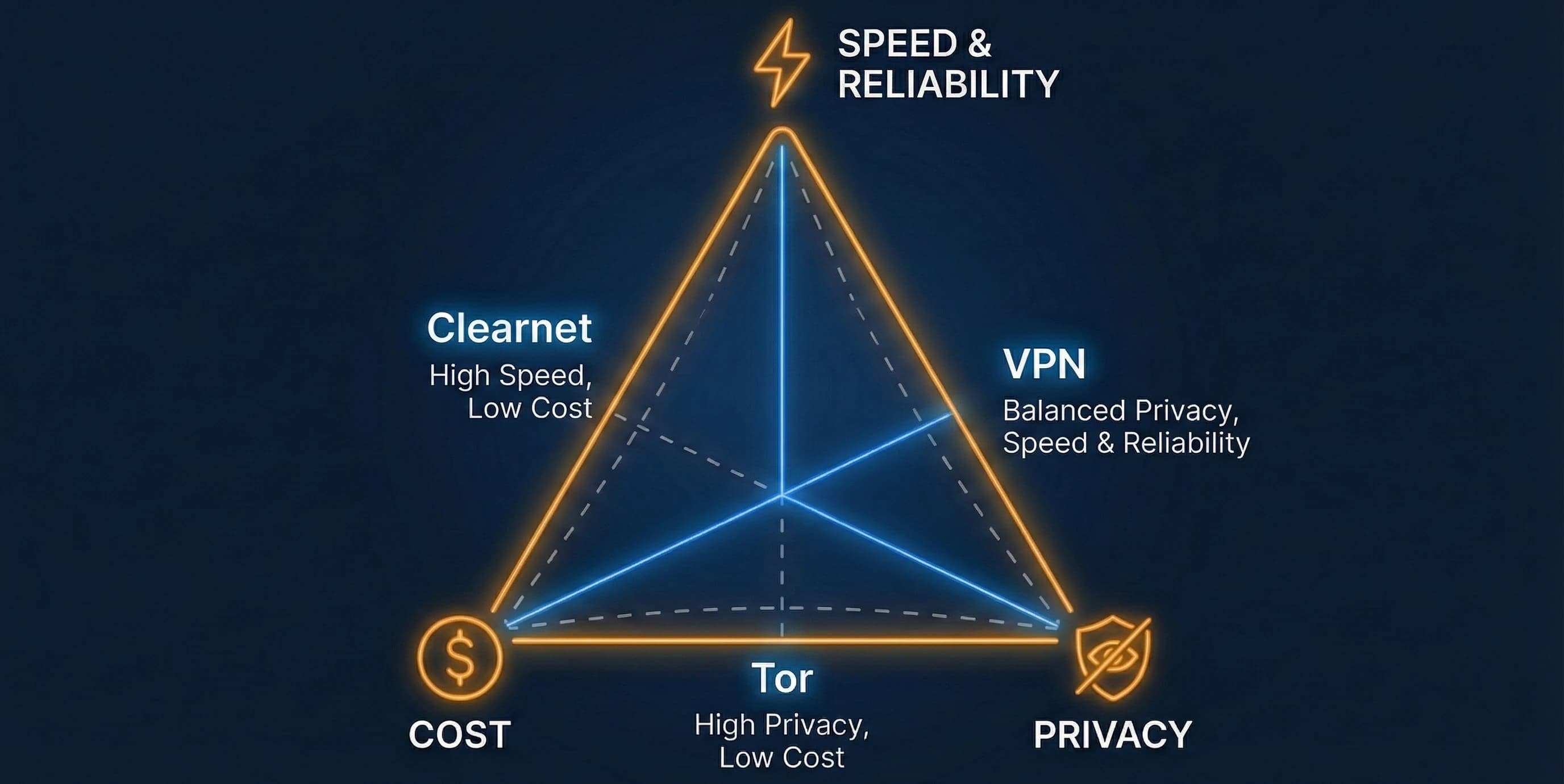
Providing Lightning ⚡ Services is about privacy, reliability, connectivity, speed, and liquidity. Relying on Tor alone for node connectivity poses risks regarding network stability, as many node runners can testify.
With Hybrid1 connectivity, your payment and routing services are faster and more reliable. However, using your home IP exposes your approximate location and opens your node to potential attacks.
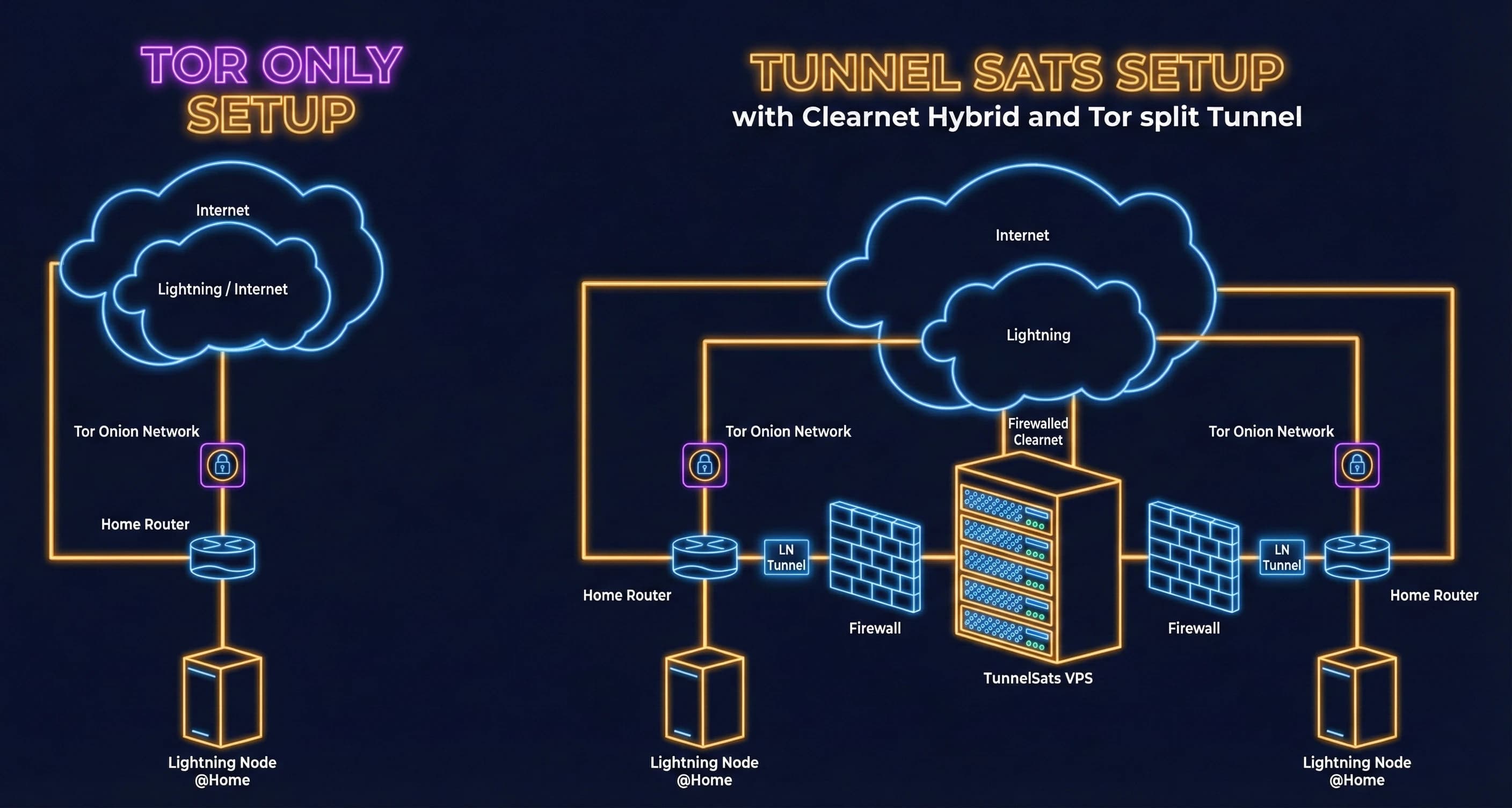
Tunnel⚡Sats offers the best of both worlds. Your node and home IP remain hidden behind Tor, while our VPS public IP acts as your node's public face. This setup typically results in higher reliability, improved uptime, fewer offline peers, and better routing performance.
Why choose Tunnel⚡Sats over other VPN providers?
Running a lightning node behind a VPN requires specific features that general public VPN providers usually do not offer. Tunnel⚡Sats is designed specifically for the lightning node use case:
- Anonymous Payment: Pay via Lightning (we do not know the sender).
- Static VPN IP: No disconnects due to changing IPs and no Dynamic DNS hassle.
- Static Forwarded Ports: We assign a specific port to your node config.
- Secure Tunnels: Quantum-safe VPN tunnels using pre-shared keys.
- Split-Tunneling: We exclude everything except lightning P2P traffic from the VPN. Unlike "Tor over VPN," this ensures redundancy: if Tor goes down, the VPN remains active, and vice versa.
How do I know what value I get from subscribing?
Value is subjective, but we recommend monitoring your latency, uptime, and routing volume week-over-week. You should observe fewer offline peers and improved connectivity compared to a Tor-only setup.
What does the connection setup look like?
Below is a flowchart comparing a Tor-only setup versus the Tunnel⚡Sats hybrid setup.
What can be found in the "My Dashboard" section?
After logging in with your Nostr extension (e.g. Alby Hub, nos2x) or by signing a challenge with your Lightning node, you will find:
- Subscription Details: Exact expiry date and plan status.
- Easy Renewal: A streamlined renewal process.
- Referral Link: Your unique link to earn free months.
- API Key Management: Access to your API keys and configuration details.
Q.Trust & Safety Measures
What services are used?
- Payment Backend: LNbits.
- VPN Endpoints: Rented virtual servers from Digital Ocean (EU, Asia, NA), Hetzner (EU), and Vultr (LatAM).
- Management: WireGuard Manager and API for secure account handling.
- Monitoring: A fork of upptime running from our repository. Response times are gathered via Global Ping.
What about data storage and privacy?
Website: We use internal essential cookies for session management only (authentication). We do not use any third-party, tracking or marketing cookies. We stick to a strict privacy policy where only the first two octets of IP addresses are stored in web server logs (e.g., 1.12.123.234 becomes 1.12.0.0).
Login & Accounts: We allow users to Login to manage their subscription conveniently.
- We are anonymity-first: Accounts are created using your Lightning node's public key.
- Two login options:
- Nostr Extension (Alby Hub, nos2x): One-click sign-in with your npub.
- Lightning Node CLI: Sign a challenge message with
lncli signmessage(LND) orlightning-cli signmessage(CLN). No browser extension required.
- We store your public key to associate subscriptions with your account.
- No email, password, or personal data is required.
VPN Endpoints: We store WireGuard public keys, pre-shared keys, forwarded ports, and total bandwidth used. Note: While a connection is active, the client's IP address must be held in memory to maintain the tunnel, but we never write it to disk.
Payments: Since payments are via Lightning, we do not know the source of the funds, only that an invoice was paid.
Notifications & Privacy: The Notifications dashboard tab allows you to manage how we communicate with you.
- Encrypted Storage: Any email address you provide is stored salted and encrypted in our database using your session key. We cannot read your email without your active session.
- NWC Connection Strings: Similarly, NWC URIs are encrypted with your session key.
- ⚠️ We cannot recover this data for you. If you lose access to your account, we have no way to retrieve your encrypted email or NWC credentials.
- Strict Opt-out: You can toggle "Disable Notifications" to permanently opt-out. This clears your email from our system.
- Failures Only: We use your email primarily for renewal failure alerts and subscription recovery. No marketing newsletters.
Is your service reliable?
We use premium VPS services with proven high uptime (99.99%) and distribute servers across different providers for redundancy. Our systems are monitored with alert mechanisms covered by three operations engineers.
Do you store my data?
We do not log IPs in our web server access data. For greater anonymity, you can visit our onion site: http://tunnelpasz3fpxhuw6obb5tpuqkxmcmvqh7asx5vkqfwe7ix74ry22ad.onion
We do not store packets or logfiles from your node once the tunnel is established. We only store:
- The payment hash (for accounting).
- Your node's IP in volatile memory (RAM) only while the tunnel is active.
Important: Save your WireGuard configuration file immediately. We cannot retrieve it for you later.
Q.Prerequisites & Installation
Which setups are supported?
We have successfully tested the following:
- RaspiBlitz (LND / CLN) v1.8.0+
- Umbrel-OS (umbrelOS 1.0 - 1.5+) (via dedicated Umbrel App — Community App Store & Official Store review pending)
- StartOS (LND / CLN / Eclair) (v0.4.0+) (via the native TunnelSats StartOS package — coming soon, not yet available; see How do I configure TunnelSats on StartOS 0.4?)
- myNode (LND) v0.3+
- RaspiBolt / MiniBolt / Bare Metal (LND / CLN) - See Pre-Check
For other setups, please contact us on Telegram to discuss viability.
Is there a data transfer limit?
Yes, 100GB per month. This is sufficient for the vast majority of lightning nodes.
What happens if I reach the 100GB limit?
If you exceed 100GB within a single month, your VPN connection will be restricted. However, you don't have to wait until the next month:
- Go to your Dashboard.
- If your usage is above 70%, a "Reset Bandwidth" option will appear.
- You can reset your 100GB counter immediately for a small fee ($1).
- Limits: To prevent abuse, resets are limited to 2 per month.
Note: LND versions older than 18.4 may have a bug causing excessive data usage. Please update your node software.
Where do I find my lightning configuration file?
Directories vary by node software. Current (12/2025) paths include:
LND:
iniRaspiBlitz: /mnt/hdd/lnd/lnd.conf
RaspiBolt:  /data/lnd/lnd.conf
Umbrel:     /home/umbrel/umbrel/lnd/lnd.conf
Umbrel 0.5+: /home/umbrel/umbrel/app-data/lightning/data/lnd/lnd.conf
myNode:     /mnt/hdd/mynode/lnd/lnd.conf
CLN:
iniRaspiBlitz: /mnt/hdd/app-data/.lightning/config
RaspiBolt:  /data/cln/config
Umbrel 0.5+: /home/umbrel/umbrel/app-data/core-lightning/data/lightningd/bitcoin/config
If you can not locate a file (e.g., the
tunnelsats_[server].confor your lightning config) you can always use thefindcommand.
- Locate TunnelSats config:
sudo find / -maxdepth 5 -type d \( -path /etc/wireguard -o -path /sd-root \) -prune -o -type f -name "tunnelsats*.conf" -print- Locate LND config:
sudo find / -name "lnd.conf"- Locate CLN config:
sudo find / -name "conf"
How to install and migrate to the Umbrel App?
We have built a dedicated TunnelSats App for Umbrel to replace the manual bash script setup. The App is currently available in the Umbrel Community App Store and official Umbrel App Store submission is under review (PR #4919).
For Existing Users (Migration Protocol):
- Locate your config: Ensure you locate your existing TunnelSats VPN Configuration File. If you don't have it saved, you can securely recover the essential configuration block by running the following command on your node:
sudo awk '1;/PersistentKeepalive/{exit}' /etc/wireguard/tunnelsatsv2.conf. - Uninstall the manual setup: To ensure a clean removal, download the latest script and run the uninstallation:
wget -O tunnelsats.sh https://github.com/tunnelsats/tunnelsats/raw/main/scripts/tunnelsats.sh && sudo bash tunnelsats.sh uninstall. (See detailed Uninstallation instructions) - Install the App: Open your Umbrel App Store → Click the Three Dots (More) → Select "Community App Stores" → Add our repository:
https://github.com/Tunnelsats/ts-umbrel-app. Then install the TunnelSats app. - Import: Open the TunnelSats App, navigate to the "Subscribe / Import" section, and paste your VPN Configuration File.
- Connect: Go to the "Installation" section within the App and install for CLN or LND with a single click.
For New Users: Simply follow step 3 onwards to add the Community App Store, install the App, and purchase a new subscription directly within the UI!
Note: The Umbrel App includes dedicated in-app FAQ, Instructions, and Health Check tabs to assist you directly inside the UI!
How does TunnelSats work in Umbrel's Secure Mode?
To comply with official Umbrel App Store security guidelines, the official TunnelSats app runs in Secure Mode (without access to the root Docker socket).
In this mode:
- Manual Configuration Required: Instead of automatically editing your node's configuration files (
lnd.conforconfig) and restarting the containers, the app displays the specific parameters you need to add. - Copy-to-Clipboard: The app interface provides copy buttons for the target paths and configuration lines.
- Step-by-Step Instructions:
- Open the Umbrel Files app (or use SSH to access your node).
- Navigate to the configuration file path shown in the modal (e.g.,
/home/umbrel/umbrel/app-data/lightning/data/lnd/lnd.conffor LND). - Paste or replace the configuration parameters and save the file.
- Go back to your Umbrel dashboard and restart your Lightning Node (or Core-Lightning) app to apply the settings.
Note: If you install TunnelSats via the Community App Store instead, the app has the option to run with automated configuration (SECURE_MODE=false), which manages config file mutation and container restarts automatically.
How do I configure TunnelSats on StartOS 0.4?
🚧 Status: coming soon, not yet available. The native TunnelSats package for StartOS 0.4 (LND, Core Lightning and Eclair) is feature-complete and has passed QA on a test system, but it is not released yet. We will announce it once the last launch gate is met:
- Start9 community registry review: Start9-Community/tunnelsats-startos#4
✅ Done: the kill switch fixes in the Lightning node packages are released: LND
0.21.3-beta:10(#214), Core Lightning26.6.8:3(#213) and Eclair0.14.3:3(#6). The TunnelSats package requires these versions or newer.Current launch status: tunnelsats-startos README. The steps below describe the package as it will ship. The older setup through System > Gateways is end-of-life and no longer recommended; if you already run TunnelSats that way, a migration path to the package will be published with the launch.
The package lives next to your Lightning node on StartOS. You buy and renew in sats from your own node, and your node runs the WireGuard tunnel inside its own container. There are no StartOS system settings to change, no port forwarding and no port 9735 conflicts between nodes.
New subscription (Buy Subscription)
- Install the TunnelSats package on StartOS.
- Open Services → TunnelSats → Actions → Buy Subscription and choose the Target Lightning Node (
LND,Core LightningorEclair), a Server Region and a Subscription Duration (1, 3, 6 or 12 months). - The package generates a fresh WireGuard keypair on your device. Only the public key is sent to TunnelSats; the private key never leaves your server.
- Pay the invoice: the action raises a Pay Invoice task on your Lightning node and also shows the BOLT11 invoice, so you can pay it with any Lightning wallet instead.
- Once the payment settles, your WireGuard configuration is provisioned automatically. No file to download or paste.
- Accept the clearnet-vpn task on your Lightning node ("Activate TunnelSats VPN tunnel and advertise clearnet endpoint to the Lightning Network"). With one click, the node brings up
wg0inside its container, accepts inbound peer connections on the tunnel address and announces your TunnelSats endpoint (<server>:<port>) to the network.
Already have a TunnelSats configuration? Use Import Subscription: choose the target node, paste your .conf and accept the clearnet-vpn task on the node.
Other actions (Services → TunnelSats → Actions)
- Renew Subscription: extend your subscription by 1, 3, 6 or 12 months; the invoice is paid through a Pay Invoice task on your node.
- Reset Bandwidth: once this month's usage reaches 70% of the 100 GB allowance, buy a reset of the monthly counter (limited resets per month, paid through a Pay Invoice task).
- Export WireGuard Configuration: view and copy your active
.confat any time. Your keys stay yours. - Configure: switch TunnelSats off, move it to a different Lightning node or replace the configuration. The node that used the tunnel is asked to turn it off first; the new node is asked to take over afterwards.
- Connect Wallet (optional, off by default): paste a Nostr Wallet Connect (
nostr+walletconnect://) URI to renew automatically when your subscription is 7 days or less from expiry. Wallet relay traffic can be routed through Tor. If the wallet budget or balance is too low, or renewal attempts keep failing, TunnelSats falls back to a Pay Invoice task on your node and sends a StartOS notification. We recommend a wallet budget of about 1.2× the current renewal price to absorb exchange rate changes.
Web dashboard: renewal timeline with reminder dates, monthly bandwidth gauge and outlook, TunnelSats server regions, progress of pending payments, and an inbound reachability check (Check inbound reachability). Buy, Renew and Reset Bandwidth can also be started from the dashboard; every payment is still accepted on your node as a Pay Invoice task.
Reminders: TunnelSats sends a StartOS notification 7 days and 3 days before your subscription expires and again once it has expired, and raises a Renew Subscription task at those points (at 7 and 3 days only if NWC auto-renewal is not active).
What the tunnel does, and what happens if it drops
- Minimum node versions: LND
0.21.3-beta:10, Core Lightning26.6.8:3or Eclair0.14.3:3(or newer). The package requires them. - While
wg0is up, your node's outbound clearnet peer traffic (handshakes, gossip, ping/pong) and inbound clearnet connections go through the tunnel, so clearnet peers see the TunnelSats server address instead of your home IP. - 🛡️ Kill switch: with those node versions, and while the tunnel is configured on the node, the node's tunnel routing table (
51820) carries a blackhole default route for IPv4 and IPv6. Ifwg0goes down, is removed or loses its server, clearnet traffic is dropped instead of going out over your home connection. The kill switch belongs to the Lightning node package, not to TunnelSats. - Tor keeps working in hybrid mode: onion peers still connect over Tor.
- Turning the VPN off on purpose (Configure → disable TunnelSats, then accepting the node's off-task) removes the tunnel from the node, and its clearnet traffic uses your home connection again. That is by design; leave TunnelSats enabled if you don't want that.
- The dashboard's reachability check only shows that inbound connections reach your node. Check outbound routing on the node itself, see How do I verify the tunnel and my connection are working correctly?
How to transfer tunnelsats_[server].conf to my node?
Note for Umbrel Users: You no longer need to transfer files manually! Simply open the TunnelSats app in your browser and use the built-in "Import" functionality.
Note for StartOS Users: The upcoming StartOS package (not yet available) takes your
.confthrough its Import Subscription action, so no file transfer is needed.
For other terminal-based nodes, use scp from your local computer. Example:
shscp tunnelsats_[server].conf [email protected]:/home/admin/
Syntax: scp <local_file> <user>@<ip/hostname>:<destination_path>
Alternatively, create a new file on your node using nano and paste the content.
How can I extend my subscription?
-
Go to tunnelsats.com and select "Renew Subscription".
-
Enter your WireGuard public key (found in your
tunnelsatsconfig or viasudo wg show). -
Click "Query", select the extension term, and pay the invoice.
Note: No new config file is required. The server simply updates your expiration date.
StartOS (package coming soon, not yet available): run Renew Subscription in the TunnelSats package and pay through the Pay Invoice task on your node, or enable automatic renewal with Connect Wallet. See How do I configure TunnelSats on StartOS 0.4?
Am I still able to connect to gRPC or Rest via Tailscale/Zerotier?
Yes. As of commit 24f0f3c, ports 10009 (gRPC) and 8080 (REST) are no longer tunneled by TunnelSats. You can use ZeroTier or Tailscale to access these ports remotely.
Running TunnelSats v2 and Mullvad in parallel?
Yes, but adjustments are required to IP rules and nftables.
-
Ensure Mullvad starts before TunnelSats.
-
Create
exclude.rulesto bypass Mullvad firewall rules:shtable inet excludeTraffic { chain allowIncoming { type filter hook input priority -100; policy accept; ip saddr <IP_OF_TUNNELSATS_VPN> ct mark set 0x00000f41 meta mark set 0x6d6f6c65 iifname tunnelsatsv2 ct mark set 0x00000f41; } chain allowOutgoing { type route hook output priority -100; policy accept; ip daddr <IP_OF_TUNNELSATS_VPN> ct mark set 0x00000f41 meta mark set 0x6d6f6c65 oifname tunnelsatsv2 ct mark set 0x00000f41; } } -
Replace
<IP_OF_TUNNELSATS_VPN>with your assigned server IP. -
Flush rules:
sudo nft -f exclude.rules.
Is it possible to run another WireGuard Tunnel besides TunnelSats?
Yes. Create a separate config file (e.g., myvpn.conf) with a different address range (do not use 10.9.0.0/24).
ini[Interface]
PrivateKey = <YOUR_PRIVATE_KEY>
Address = <YOUR_IP>
Table = off

[Peer]
PublicKey = <PEER_PUBLIC_KEY>
Endpoint = <PEER_ENDPOINT>
AllowedIPs = 0.0.0.0/0
Start it with wg-quick up myvpn.conf.
Q.Troubleshooting & Verification
I'm stuck with the setup process, can you help?
Please raise an issue on Github or join our Telegram group. Describe your issue without sharing private keys.
How do I verify the tunnel and my connection are working correctly?
- Verify Outbound Traffic (The "face" of your node)
Check if outbound connection go through the tunnel therefore you can use the following:
Docker Setup
shdocker run -ti --rm --net=docker-tunnelsats curlimages/curl https://api.ipify.org
This makes an outbound request to the api.ipify.org website through the tunnel and should show the VPN IP.
Non-Docker Setup
For non-docker setups you have to run the command in the specific cgroup. The equivalent command to docker setup is
shcgexec -g net_cls:splitted_processes curl --silent https://api.ipify.org
StartOS (native package, coming soon)
The tunnel runs inside your Lightning node's container, so check it there. Open a shell on the node (e.g. start-cli package attach lnd) and run:
shwg show wg0                    # a recent handshake and non-zero transfer
ip rule                        # a rule with "lookup 51820"
ip route show table 51820      # "default dev wg0" and "blackhole default metric 4294967295" (kill switch)
ip -6 route show table 51820   # "blackhole default dev lo metric 4294967295" (IPv6 kill switch)
curl -4 -s https://ifconfig.me # must print the TunnelSats server IPv4, not your home IP
curl -6 -s https://ifconfig.me # must print the TunnelSats server IPv6 (or fail when IPv6 is blocked), never your home IPv6
The curl checks show the tunnel while it is up; the blackhole routes show that the kill switch is in place for when it goes down (needs the minimum node versions listed in the StartOS section).
If wg0 went down and clearnet peers stay unreachable after your connection is back, restart the node package: the blackhole keeps clearnet traffic blocked until the node brings the tunnel up again.
- Verify Inbound Connections (Reachability)
Check if the VPN port allows traffic in. Replace de3.tunnelsats.com and 32320 with your assigned server and port.
shnc -zv de3.tunnelsats.com 32320
Success Output: Connection to de3.tunnelsats.com port 32320 [tcp/*] succeeded!
- Verify WireGuard Status
Run sudo wg show to see connection statistics (look for the "latest handshake"). Alternatively, use our helper script in the same directory as your config-file:
shwget -O tunnelsats.sh https://github.com/tunnelsats/tunnelsats/raw/main/scripts/tunnelsats.sh
sudo bash tunnelsats.sh status
- Bot Verification
Use the Tunnel⚡Sats Bot on Telegram. Send /ping [pubkey@tunnelsats-clearnetIP:port] to test connectivity.
What options do I have if I'm not happy?
Please contact us directly. We are approachable and dedicated to finding a solution for your specific issue.
Q.Payment & Costs
Why are you charging fees?
We incur significant costs for premium VPS providers, bandwidth (even idle nodes consume bandwidth), and development hours for security and infrastructure maintenance. Fees cover these operational costs and fund further development.
Are you offering any discounts?
Yes.
- 3 months: 5% off
- 6 months: 10% off
- 12 months: 20% off
How do Automatic NWC Renewals Work?
Tunnel⚡Sats supports Nostr Wallet Connect (NWC) for seamless, non-custodial auto-renewals.
- Logic: We automatically renew your subscription for the same duration as your last purchase. For example, if you bought 12 months (to get the 20% discount), we will renew for another 12 months, with the same discount applied.
- Timing: Renewals are triggered 1-3 days before expiry.
- Budget: You control the spending. We recommend setting a budget slightly higher than your expected renewal cost (e.g., if you pay 20k sats/year, set a 25k sats/year budget).
StartOS package (coming soon, not yet available): the package's Connect Wallet action runs NWC auto-renewal on your own device instead: the NWC connection is stored on your server (and excluded from StartOS backups), renewal starts when your subscription is 7 days or less from expiry, the duration matches your last purchase by default (or 1 / 3 / 6 / 12 months), and a Pay Invoice task on your node is the fallback if the wallet cannot pay.
Why shouldn't I just do it myself?
You can! We encourage learning. However, Tunnel⚡Sats offers a managed service that removes the burden of server maintenance, security patching, and complex networking configuration.
Q.Referral Program
How does the Referral Program work?
You can generate a unique referral link from your Dashboard. Share this link with friends or other node runners.
When someone uses your link to purchase a subscription:
- They get bonus months: +1 month for 3-month plans, +2 months for 6-month plans, +3 months for 12-month plans.
- You get bonus months: The same bonus amounts are automatically added to your active subscription.
It's a Win-Win! Both you and the referee get extended service time for free.
I referred a friend but didn't get my bonus?
Bonuses are applied automatically once the payment is confirmed. Ensure you have an active subscription yourself, as we extend your existing service. If your subscription has expired significantly long ago, you may need to renew first.
Q.Public API
How do I use the TunnelSats API?
Our Public API enables programmatic subscription management. Perfect for automated renewals, custom integrations with node management software (Umbrel apps, RaspiBlitz scripts), and bulk subscriptions for multiple nodes.
Quick Start Flow:
GET /api/public/v1/servers→ List available serversPOST /api/public/v1/subscription/create→ Get Lightning invoice- Pay invoice with any Lightning wallet
POST /api/public/v1/subscription/claim→ Get WireGuard config
Example - Create a Subscription:
bashcurl -X POST https://tunnelsats.com/api/public/v1/subscription/create \
  -H "Content-Type: application/json" \
  -d '{"serverId": "de1", "duration": 3}'
What are the API pricing discounts?
| Duration | Discount | Price |
|---|---|---|
| 1 month | 0% | $3.00 |
| 3 months | 5% | $8.55 |
| 6 months | 10% | $16.20 |
| 12 months | 20% | $28.80 |
Where can I find full API documentation?
Check out our Postman Collection for complete endpoint documentation with examples, including response schemas, error codes, referral program integration, and renewal workflows.
Q.Miscellaneous & Advanced
How do I switch from phased out servers (e.g. from us1 to us3)?
We're increasing capacity and elasticity for our US-East Coast Server, and as a result we are phasing out us1.tunnelsats.com slowly. If you are running your node on this VPN (AMER continent), please take a minute to read how to switch your connection to the new vpn: us3.tunnelsats.com
In fact there are five simple steps to take:
- Edit your
tunnelsats_[server].confand changeEndpointentry toEndpoint = us3.tunnelsats.com:51820 - Fetch latest version of setup script:
shwget -O tunnelsats.sh https://github.com/tunnelsats/tunnelsats/raw/main/scripts/tunnelsats.sh
- Run it:
sudo bash tunnelsats.sh install
Important: before changing the config, it is good practice to backup your config.
- To backup the conf use
sudo cp <path/to/conf> <path/where/tosafe/backup>- E.g., for raspiblitz and lnd:
sudo cp /mnt/hdd/lnd/lnd.conf ~/lnd_backup.conf
-
Edit your lightning config file and change the DNS entry accordingly:
- LND:
externalhosts=us3.tunnelsats.com:<yourVPNport> - CLN:
announce-addr=us3.tunnelsats.com:<yourVPNport>
- LND:
-
Restart your lightning implementation
Verify the switch to us3.tunnelsats.com
To verify that the switch worked, you can run
- LND:
lncli getinfo | jq '.uris' - CLN:
lightning-cli getinfo | jq '.address'
The public IP should start with 178.156.x.x
Where do I find the config files?
For the most common lightning node packages we documented the default location of the configuration files, see: Where do I find my lightning configuration file? If you run into any trouble please reach out (Where to get help?)
Renewing your subscription during migration
If you try to renew your subscription and our system detects that you are still active on the legacy us1 server, you will be prompted to confirm your migration.
- We will ask you to verify your Internal WireGuard IP (e.g.
10.9.x.x) to prove you are the owner of the config. - Upon confirmation, we will disable your legacy us1 key to prevent conflicts.
- Your renewal will then proceed on the new
us3server automatically. This ensures you don't accidentally keep using the old server.
Tuning Tor
To stabilize Tor connectivity alongside the VPN, you can add these experimental settings to the end of your torrc file:
iniLongLivedPorts 21,22,706,1863,5050,5190,5222,5223,6523,6667,6697,8300,9735,9736,9911
UseEntryGuards 1
NumEntryGuards 8
Do you offer full-service VPNs too?
No. We specialize in Lightning node connections. For a general privacy-preserving VPN that accepts Lightning, check out LNVPN.net.
I have ideas or want to help. Where can I reach you?
Reach out via Telegram, Nostr, X, email (info @ tunnelsats.com), or open a GitHub issue.
Who built this?
From Node Runners for Node Runners 🧡